This is the multi-page printable view of this section. Click here to print.
Admin
1 - User Management
To view all users of your SamurAI tenant select Admin > User Management from the main menu.
User Management displays information for each user including their assigned role, when they were created, account status and last login.
You also have the ability to export you user list to a CSV file by selecting Export.
Invite Users
To add new users you can send an invite from the SamurAI Portal, this will send an email allowing the user to register their account.
- Login to the SamurAI Portal and select Admin - User Management
- Select Invite Users
- Select a role for the user. For more information on roles, review User Roles.
- Add the email address of the user. You can add multiple email addresses associated with the role by selecting + Add another person.
- An email will be sent from no-reply@security.ntt to each user requesting them to Register Account and complete Account Details.
- Further registration information can be found in Getting Started with SamurAI MDR
User Roles
Each SamurAI Portal user is assigned a role. The role controls the areas of the portal the user can access and the actions they can perform.
To view a user’s current role, select Admin > User Management. The assigned role is displayed in the Role column.
To change a user’s role:
- Log in to the SamurAI Portal and select Admin > User Management.
- Locate the required user.
- Select more options for that user.
- Select Set role.
- Select the required role from the list.
- Select Save.
Only users with the appropriate administrative permissions, normally users assigned the Tenant Administrator role, can change a user’s role.
User Status
The table below outlines the potential user status:
| User Status | Description |
|---|---|
| Invited | user has been invited to register account |
| Active | user has registered and is active |
2 - User Roles
Roles and access control
Role-Based Access Control (RBAC) controls which areas of the SamurAI Portal a user can view and which actions they can perform.
Each SamurAI Portal user is assigned one role. The role determines the permissions available to that user, such as whether they can view security incidents, manage telemetry, create or update tickets or administer users.
RBAC helps your organization apply the principle of least privilege by ensuring users have access only to the information and actions required for their responsibilities.
Regional role availability
RBAC is available in the SamurAI Portal for tenants in Japan and Europe.
Japan and Europe operate separate platforms with different role catalogues. The roles reflect the capabilities and operational requirements of each regional portal.
Available roles and their associated permissions may vary by region. Refer to the applicable regional role catalogue below when choosing a role for a user.
Who can manage roles?
Users assigned the Tenant Administrator role can:
- View users in the tenant
- Invite new users
- Assign and change user roles
- View available roles and their associated permissions
- Manage tenant-level administrative activities available within the SamurAI Portal
Users with other roles can access only the portal functions permitted by their assigned role.
Important information
Existing tenants
When RBAC is enabled for an existing SamurAI tenant, all existing portal users are initially assigned the Tenant Administrator role.
This approach ensures that existing users retain access during the rollout. Your organization must review its current user population and change each user to the most appropriate role as soon as possible.
NTT recommends reviewing user access with the individuals responsible for security operations, IT operations, service ownership, and access governance.
New tenants
For a new SamurAI tenant, the first registered portal user is assigned the Tenant Administrator role.
That user is responsible for inviting additional users and assigning appropriate roles.
Tenant Administrator coverage
Your organization should maintain at least two active Tenant Administrators wherever possible, providing a primary administrator and a backup.
This reduces the risk of losing administrative access when an administrator is unavailable, changes role, leaves the organization, or cannot access their account.
Keep the number of Tenant Administrators limited to those who need to manage the portal and user access. Assign additional administrators only where there is a clear administrative or coverage requirement.
View roles
To view the roles configured for your SamurAI tenant:
- Log in to the SamurAI Portal.
- From the main menu, select Admin > Roles.
- Select a role to view its permissions.
The Roles page displays the roles available to your tenant, a short description of each role, its category, and the number of permissions assigned.
When viewing a role, permissions are grouped by SamurAI Portal feature and, where applicable, by component. A check mark indicates that the role has the corresponding permission.
Permission actions
Depending on the feature and component, permissions can include:
- Read — View information or access a portal feature
- Create — Create new records or configurations
- Update — Modify existing records or configurations
- Delete — Delete records or configurations
- Upload — Upload files or evidence where supported
- Close — Close tickets or security incidents where supported
- Enroll — Enroll endpoints where supported
- Assign role — Assign a role to portal users
- Invite — Invite new users
An action applies to the feature and component against which it is listed. Permission to perform an action in one feature does not automatically grant the same action in another.
Understand Core permissions
Core refers to the main information or functionality of a feature. The actions shown against Core apply to that feature’s primary records or functions.
For example, under General tickets, Core permissions control actions on the ticket itself, such as reading, creating, updating, or closing it.
Supporting components, such as attachments, and communication channels, have their own permissions where listed.
Core is not an additional permission level and does not automatically grant access to every component within a feature.
Permissions used across portal views
Some permissions provide access to information used in several areas of the SamurAI Portal.
For example:
- Events permissions support views that use telemetry event data, including relevant dashboards and event graphs within integrations.
- Alerts permissions support views that display alert data, including relevant dashboards.
- Security Incidents permissions support incident views and dashboards that use incident data, including MDR metrics.
Dashboards are therefore not necessarily listed as separate features in the permissions table. Access to their information depends on permissions for the underlying data.
Permission to view an integration’s configuration does not, by itself, grant permission to view its event data. These are separate permissions.
The predefined roles include the permissions required for their intended responsibilities.
Available roles
The following descriptions summarise the intended use of each role. They are not exhaustive permission lists.
Japan
The following roles are available to tenants in Japan:
| Role | Intended users | Typical access |
|---|---|---|
| Tenant Administrator | Designated personnel responsible for portal and access administration | Broad access to supported SamurAI Portal capabilities, including user management and role assignment |
| Viewer | Users who require visibility of service information without making changes | Read-only access to permitted portal features and information |
| TAM | Technical Account Managers or users responsible for reviewing service information and coordinating activities | Access supporting service review, incidents, tickets, reporting, and operational coordination |
| Security | Security operations, security engineering, or incident-response users | Access supporting security monitoring, incidents, alerts, analysis, tickets, and permitted security administration activities |
| IT | IT operations, infrastructure, network, or telemetry owners | Access supporting telemetry, integrations, collectors, monitoring, related operational tickets, and permitted IT administration activities |
Europe
The following roles are available to tenants in Europe:
| Role | Intended users | Typical access |
|---|---|---|
| Tenant Administrator | Designated personnel responsible for portal and access administration | Broad access to supported SamurAI Portal capabilities, including user management and role assignment |
| Security Administrator | Users who require broad security operational and integration-management capabilities without administering user access | Access to incidents, tickets, alerts, and permitted telemetry/search, plus management of integrations and collectors; excludes user and role management |
| Security Analyst | Security operations or incident response users who investigate and manage security findings | Access to security incidents, general tickets; read-only access to integration and collector configuration |
| IT Technician | System and administrators responsible for setting up and troubleshooting data-source integrations | Management of integrations and collectors, permitted telemetry and diagnostic functions |
| Help Desk Analyst | Users who need to view and interact with tickets without accessing telemetry | Access to authorised tickets and their permitted workflow actions; excludes telemetry access and integration configuration |
| Viewer | Users who require visibility of service information without making changes | Read-only access to permitted portal features and information |
Choose the appropriate role
Select a role based on the user’s responsibilities and the roles available.
Japan
| User responsibility | Recommended role |
|---|---|
| Administers the SamurAI Portal, including user access and role assignment | Tenant Administrator |
| Reviews permitted portal information without making changes | Viewer |
| Coordinates service delivery, reviews service information, and works with NTT on customer activities | TAM |
| Investigates alerts and incidents, performs security analysis, or manages permitted security-related activities | Security |
| Maintains integrations, collectors, telemetry sources, and related IT operational activities | IT |
Europe
| User responsibility | Recommended role |
|---|---|
| Administers the SamurAI Portal, including user access and role assignment | Tenant Administrator |
| Performs security operational activities and manages integrations or collectors, without managing users or roles | Security Administrator |
| Investigates incidents, reviews alerts, and searches permitted security data without changing integrations or collectors | Security Analyst |
| Sets up and troubleshoots integrations and collectors, and manages related support tickets | IT Technician |
| Views and interacts with authorised tickets without requiring telemetry access | Help Desk Analyst |
| Reviews permitted portal information without making changes | Viewer |
Assign the lowest-privilege role that allows a user to perform their responsibilities.
For example, an engineer responsible for maintaining telemetry integrations should normally receive IT in Japan or IT Technician in Europe, rather than Tenant Administrator.
For tenants in Europe, a user who investigates incidents but does not need to change integrations should normally receive Security Analyst, rather than Security Administrator.
A user who only handles tickets and does not require telemetry access should receive Help Desk Analyst in Europe.
A stakeholder who only needs to review permitted service information should normally receive Viewer in Japan or Europe.
Review access before assigning roles
Before assigning or changing a user’s role, review:
- The user’s current responsibilities
- The roles available to the tenant and the services the user needs to access
- Whether the user needs to manage users or assign roles
- Whether the user needs to configure integrations or collectors
- Whether the user needs telemetry search, troubleshooting information, or only ticket access
- Whether the user needs access to security incidents, alerts, reports, or evidence
- Whether the user needs to create, update, close, or delete records
- Whether the user needs to export information or perform response actions
- Whether the user still requires SamurAI Portal access
- Your organization’s internal access-control and approval requirements
Review role assignments regularly and when a user changes responsibilities, changes team, stops supporting a service, or leaves your organization.
Next steps
- To view, invite, and manage users, see User Management.
- To understand the capabilities available in the SamurAI Portal, see SamurAI Portal User Guide.
- To request assistance, raise a request with the SamurAI SOC through the SamurAI Portal.
3 - User Settings
Select your user account at the top right of the SamurAI Portal to access your settings.
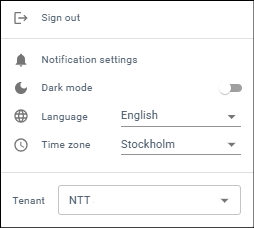
Figure 1: User Settings
Notification Settings
You can manage notifications you receive from the SamurAI Platform by adjusting your personal notification settings. These settings apply only to your account and do not affect other users.
Role-based availability
The notification categories available to you depend on your assigned role, the features enabled for your SamurAI tenant, and the resources you are permitted to access. Your assigned role is displayed in the user settings menu.
Notification settings do not grant additional access. You can configure notifications only for portal features and resources that are available to your account.
If your role does not permit access to a feature or resource, its notification category is not displayed in your notification settings.
If you require access to an unavailable feature or notification category, contact a Tenant Administrator for your SamurAI tenant.
To ensure your notification preferences work correctly, notifications must remain enabled for each individual Collector, Integration, and Network Traffic Analyzer. For details, see the relevant sections:
Notification Behavior by Category
The notification categories displayed in the portal depend on your assigned role and tenant access. Categories are available only where you can access the related portal feature and resource.
- Collectors, Integrations and Network Traffic Analyzers: Notifications are triggered by status changes (e.g OK, Warning, Critical, Pending, Unknown)
- Security Incidents and General Tickets: Notifications are triggered by actions (e.g created, updated, closed, comment added)
Default Notification Settings
When your account is created, SamurAI applies default notification preferences only for notification categories that are available to your role and tenant.
If a notification category is not available to your role, it is not displayed in your notification settings and no default preference is applied for that category.
| Notification Category | Default Setting |
|---|---|
| Collector | Critical Status |
| Integration | Critical Status |
| Network Traffic Analyzer | Critical Status |
| Security Incidents | Created, updated, closed, comment added |
| General Tickets | Created, updated, closed, comment added |
How to Update Your Notification Settings
- Open the SamurAI Portal and select your user profile in the top right corner
- Click Notification Settings
- Choose a notification category and use the dropdown menu to select the state or action for which you want to receive notifications
- Click Save. If you have access to multiple tenants you can Save on all tenants
Appearance
Choose between a light or dark appearance for the application by toggling between the two modes.
Language
Toggle between the supported languages - English, Swedish or Japanese.
Time Zone
By default, the portal uses your browser’s time zone (detected from your device’s operating system) for timestamps displayed. You can override this by selecting a different time zone in your profile settings.
Tenant
Tenants that you belong to are listed. If you have multiple tenants simply select the tenant you wish to view.
News Feed
The news feed is populated by the SamurAI Security Operation Center (SOC) analysts and may include:
- any issues or maintenance affecting service
- news such as how we are handling new and emerging threats
- links to blog posts on interesting security research
- updates on new releases
The news feed is viewed by clicking on the news icon ( ), with the latest title and an indication of any unread news displayed. The latest 15 news items are displayed and more can be fetched by clicking on more at the bottom of the list.
Important news items will be highlighted and include a warning icon beside the title in the feed.