Select your user account at the top right of the SamurAI Portal to access your settings.
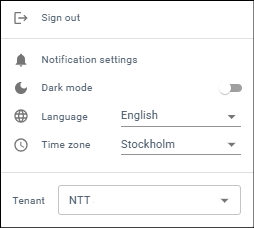
Figure 1: User Settings
Notification Settings
You can manage which email notifications you receive from the SamurAI Platform by adjusting your personal notification settings. These settings apply only to your account and do not affect other users.
To ensure your notification preferences work correctly, notifications must remain enabled for each individual Collector, Integration, and Network Traffic Analyzer. For details, see the relevant sections:
Notification Behavior by Catgeory
- Collectors, Integrations and Network Traffic Analyzers: Notifications are triggered by status changes (e.g OK, Warning, Critical, Pending, Unknown)
- Security Incidents and General Tickets: Notifications are triggered by actions (e.g created, updated, closed, comment added)
Default Notification Settings
| Notification Category | Default Setting |
|---|---|
| Collector | Critical Status |
| Integration | Critical Status |
| Network Traffic Analyzer | Critical Status |
| Security Incidents | Created, updated, closed, comment added |
| General Tickets | Created, updated, closed, comment added |
How to Update Your Email Notification Settings
- Open the SamurAI Portal and select your user profile in the top right corner
- Click Notification Settings
- Choose a notification category and use the dropdown menu to select the state or action for which you want to receive email notifications.
Appearance
Choose between a light or dark appearance for the application by toggling between the two modes.
Language
Toggle between the supported languages - English, Swedish or Japanese.
Time Zone
By default, the portal uses your browser’s time zone (detected from your device’s operating system) for timestamps displayed. You can override this by selecting a different time zone in your profile settings.
Tenant
Tenants that you belong to are listed. If you have multiple tenants simply select the tenant you wish to view.
News Feed
The news feed is populated by the SamurAI Security Operation Center (SOC) analysts and may include:
- any issues or maintenance affecting service
- news such as how we are handling new and emerging threats
- links to blog posts on interesting security research
- updates on new releases
The news feed is viewed by clicking on the news icon ( ), with the latest title and an indication of any unread news displayed. The latest 15 news items are displayed and more can be fetched by clicking on more at the bottom of the list.
Important news items will be highlighted and include a warning icon beside the title in the feed.