Select your user account at the top right of the SamurAI Portal to access your settings.
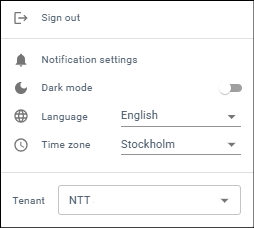
Figure 1: User Settings
Notification Settings
You can manage notifications you receive from the SamurAI Platform by adjusting your personal notification settings. These settings apply only to your account and do not affect other users.
Role-based availability
The notification categories available to you depend on your assigned role, the features enabled for your SamurAI tenant, and the resources you are permitted to access. Your assigned role is displayed in the user settings menu.
Notification settings do not grant additional access. You can configure notifications only for portal features and resources that are available to your account.
If your role does not permit access to a feature or resource, its notification category is not displayed in your notification settings.
If you require access to an unavailable feature or notification category, contact a Tenant Administrator for your SamurAI tenant.
To ensure your notification preferences work correctly, notifications must remain enabled for each individual Collector, Integration, and Network Traffic Analyzer. For details, see the relevant sections:
Notification Behavior by Category
The notification categories displayed in the portal depend on your assigned role and tenant access. Categories are available only where you can access the related portal feature and resource.
- Collectors, Integrations and Network Traffic Analyzers: Notifications are triggered by status changes (e.g OK, Warning, Critical, Pending, Unknown)
- Security Incidents and General Tickets: Notifications are triggered by actions (e.g created, updated, closed, comment added)
Default Notification Settings
When your account is created, SamurAI applies default notification preferences only for notification categories that are available to your role and tenant.
If a notification category is not available to your role, it is not displayed in your notification settings and no default preference is applied for that category.
| Notification Category | Default Setting |
|---|---|
| Collector | Critical Status |
| Integration | Critical Status |
| Network Traffic Analyzer | Critical Status |
| Security Incidents | Created, updated, closed, comment added |
| General Tickets | Created, updated, closed, comment added |
How to Update Your Notification Settings
- Open the SamurAI Portal and select your user profile in the top right corner
- Click Notification Settings
- Choose a notification category and use the dropdown menu to select the state or action for which you want to receive notifications
- Click Save. If you have access to multiple tenants you can Save on all tenants
Appearance
Choose between a light or dark appearance for the application by toggling between the two modes.
Language
Toggle between the supported languages - English, Swedish or Japanese.
Time Zone
By default, the portal uses your browser’s time zone (detected from your device’s operating system) for timestamps displayed. You can override this by selecting a different time zone in your profile settings.
Tenant
Tenants that you belong to are listed. If you have multiple tenants simply select the tenant you wish to view.
To review Security Incidents and General Tickets across multiple tenants without switching between tenant lists, see Federated View.
Federated View
Federated View allows you to review Security Incidents and General Tickets across the tenants you are authorised to access, without switching between individual tenant lists.
It is intended for users who oversee multiple tenants, such as a central security team supporting several business units or organisations.
Enable Federated View
- Select your user account in the top-right corner of the SamurAI Portal.
- Turn on Federated View.
The Portal displays a Federated indicator to identify the active view.
You can then select:
- Security Incidents - review Security Incidents across your authorised tenants.
- General Tickets - review General Tickets across your authorised tenants.
- Dashboard > Security Incidents - review current open Security Incidents, with a breakdown by tenant.
The Security Incidents and General Tickets lists include a Tenant column identifying the tenant associated with each record.
Access and permissions
Federated View does not grant additional access or change your role and permissions.
The information you can view depends on both your access to each tenant and your permissions for the relevant information in that tenant. Your permissions also determine which actions you can perform.
For example, permission to view General Tickets does not automatically grant permission to view Security Incidents. Similarly, permission to view an incident or ticket does not automatically grant permission to update or close it.
The Security Incidents dashboard is subject to your permissions for the underlying incident data.
For more information, see User Roles.
Return to an individual tenant
- Select your user account in the top-right corner.
- Turn off Federated View.
- Use the Tenant selector to select the tenant you want to view.
Federated View provides consolidated incident and ticket visibility. Return to an individual tenant to use other tenant-specific Portal features.
Missing information
If an expected tenant, incident, or ticket is not visible:
- Check that Federated View is enabled.
- Check any active list filters.
- Ask a Tenant Administrator to confirm your access and permissions for the relevant tenant.
News Feed
The news feed is populated by the SamurAI Security Operation Center (SOC) analysts and may include:
- any issues or maintenance affecting service
- news such as how we are handling new and emerging threats
- links to blog posts on interesting security research
- updates on new releases
The news feed is viewed by clicking on the news icon ( ), with the latest title and an indication of any unread news displayed. The latest 15 news items are displayed and more can be fetched by clicking on more at the bottom of the list.
Important news items will be highlighted and include a warning icon beside the title in the feed.