OsecT
| SamurAI [Local] Collector | SamurAI [Cloud] Collector |
|---|---|
 | |
Availability
OsecT is currently available only to organizations located in Japan or to Japanese companies. If you would like to use this integration, please contact your sales team.OsecT is an OT network visualization and threat detection service. Depending on your OsecT type, logs are forwarded to SamurAI using either a SamurAI Cloud Collector (HEC) or a SamurAI Local Collector:
| OsecT type | Transport | SamurAI Collector |
|---|---|---|
| OsecT Basic | HTTPS | SamurAI Cloud Collector (HEC) |
| OsecT SRA | HTTPS | SamurAI Cloud Collector (HEC) |
| OsecT Edge | Syslog | SamurAI Local Collector |
Follow the section that matches your OsecT type:
- OsecT Basic / OsecT SRA - uses a SamurAI Cloud Collector (HEC)
- OsecT Edge - uses a SamurAI Local Collector
OsecT Basic / OsecT SRA
OsecT Basic and OsecT SRA forward logs to a SamurAI Cloud Collector (HEC). To complete this Integration you will need to:
1) From the SamurAI Portal:
2) From OsecT:
Connectivity Requirements
You must ensure the following connectivity requirements are available:
| Source | Destination | Ports | Description |
|---|---|---|---|
| OsecT | SamurAI Cloud Collector (HEC) | TCP/443 (HTTPS) | For log transmission |
Create a SamurAI Cloud Collector (HEC)
OsecT Basic and OsecT SRA push events to a SamurAI Cloud Collector using the Splunk HTTP Event Collector (HEC) protocol. Create a Cloud Collector in the SamurAI Portal to obtain the API URL and Token required by OsecT.
Login to the SamurAI Portal
Click Telemetry and select Collectors from the main menu
Click Create collector
Select the Cloud collector tab
Enter the following information:
- Collector name - The name will appear in the SamurAI Portal for you to easily reference
- Description - Optional but if completed will appear in the SamurAI Portal for you to easily reference
Set Provider to Splunk HTTP Event Collector (HEC)
Click Create collector
Record the connection details presented for use when configuring OsecT:
- API URL - the Cloud Collector (HEC) API URL (required for OsecT SRA)
- Token - entered as the SIEM Authentication Token in OsecT (required for OsecT Basic and OsecT SRA)
Configure OsecT (Basic / SRA)
(OsecT SRA only) Connect to OsecT via SSH and run the following command to configure log transmission to the SamurAI Cloud Collector (HEC):
osect siem set --https_enable True --https_url <API URL>Replace
<API URL>with the full API URL recorded in Create a SamurAI Cloud Collector (HEC) (for example,https://hec.<region>.mdr.security.ntt).Log in to the OsecT portal in your browser.
From the menu on the left, click Learning & Detection Settings.
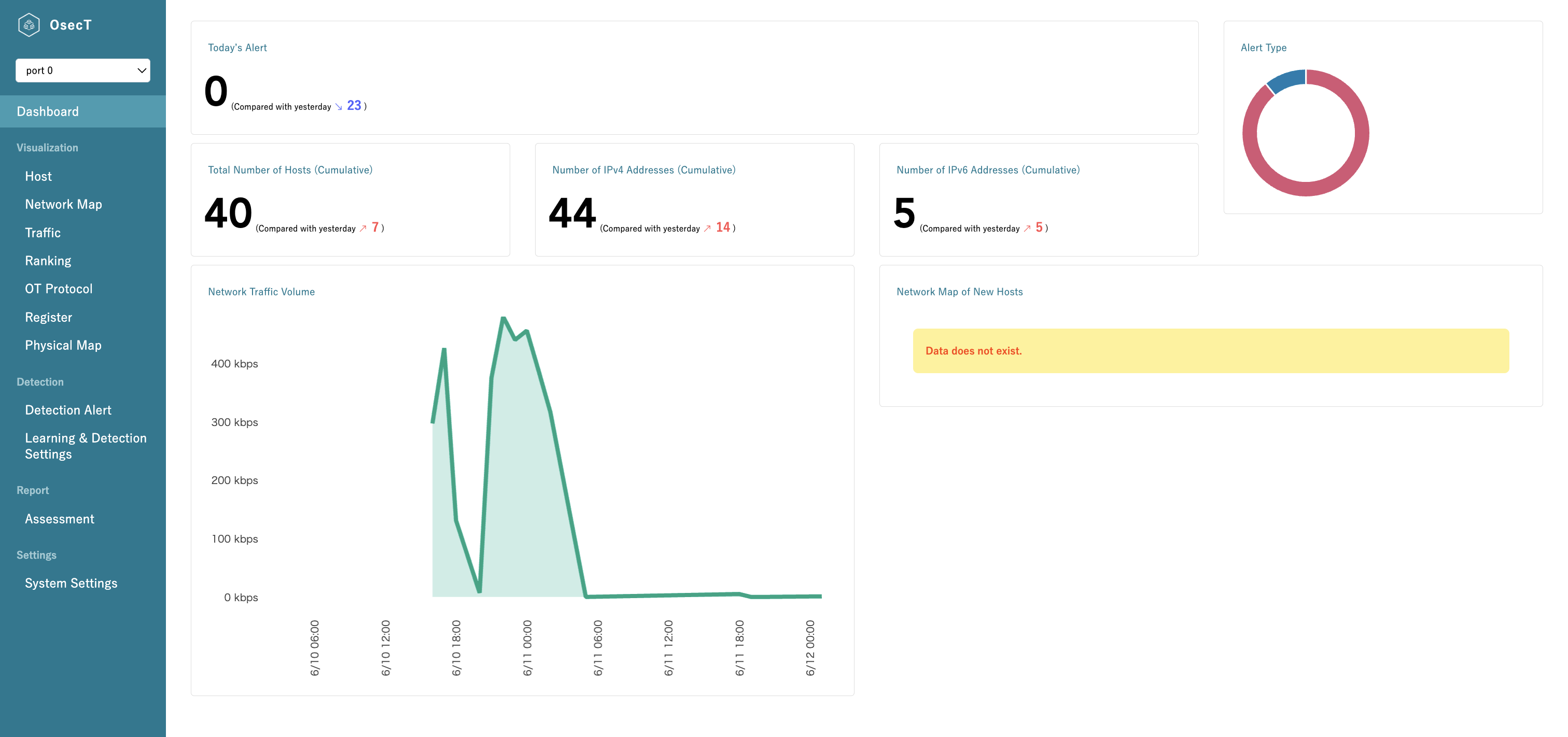
From the tabs at the top of the screen, click the Cooperation tab and select SIEM from the sub-menu.
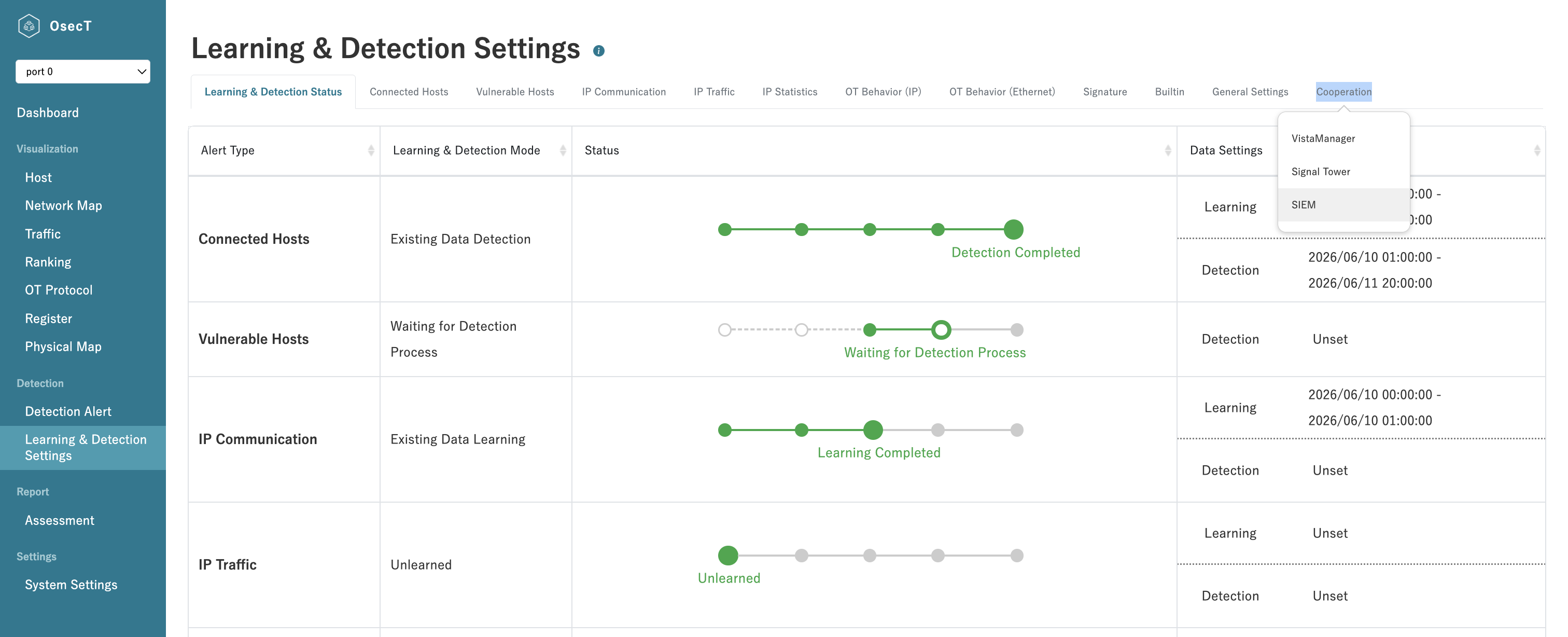
In the SIEM Authentication Token field, enter the Token recorded in Create a SamurAI Cloud Collector (HEC).
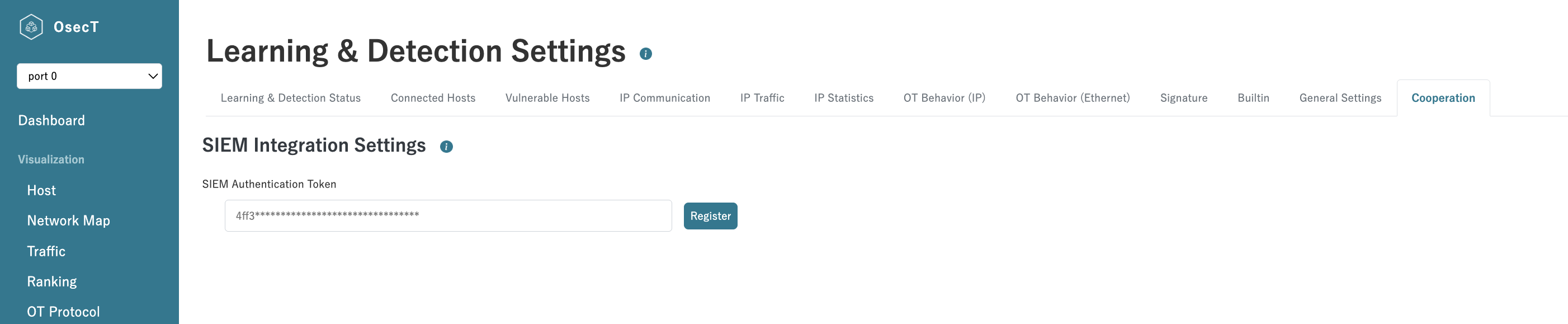
Click Register to save the settings.
This completes the OsecT Basic / OsecT SRA integration configuration.
OsecT Edge
This guide describes the steps required to configure OsecT Edge to send syslog events to a SamurAI Local Collector deployed on your network.
Connectivity Requirements
You must ensure the following connectivity requirements are available:
| Source | Destination | Ports | Description |
|---|---|---|---|
| OsecT | SamurAI Local Collector | TCP/514 (syslog) | For log transmission |
Configure OsecT Edge
Connect to OsecT via SSH.
Run the following command to configure syslog forwarding to the SamurAI Local Collector:
osect siem set --syslog_enable True --syslog_host <Local Collector IP address> --syslog_port 514- Set
--syslog_hostto the IP address of the SamurAI Local Collector deployed on your network. - Set
--syslog_portto514.
- Set
For integrations that utilize a Local Collector where we ingest syslog only, you do not need to follow specific steps in the SamurAI MDR portal as we auto detect the vendor and product. The only reason you need to use the SamurAI MDR portal is if you need to determine the Local Collector IP address. Of course you will still need to ensure the integration is functioning! See Integrations for more information on checking status.
Our Integration guide was accurate at the time of writing but vendors change things frequently! If you find errors or anything is outdated, let us know by raising a request in the SamurAI MDR Portal and we shall get it updated.